

Dashboard
The Dashboard opens when you sign in to the admin, and the livematrix logo at the top left brings you back to it. It shows whether the server has room for everyone, and who is connected on which device.
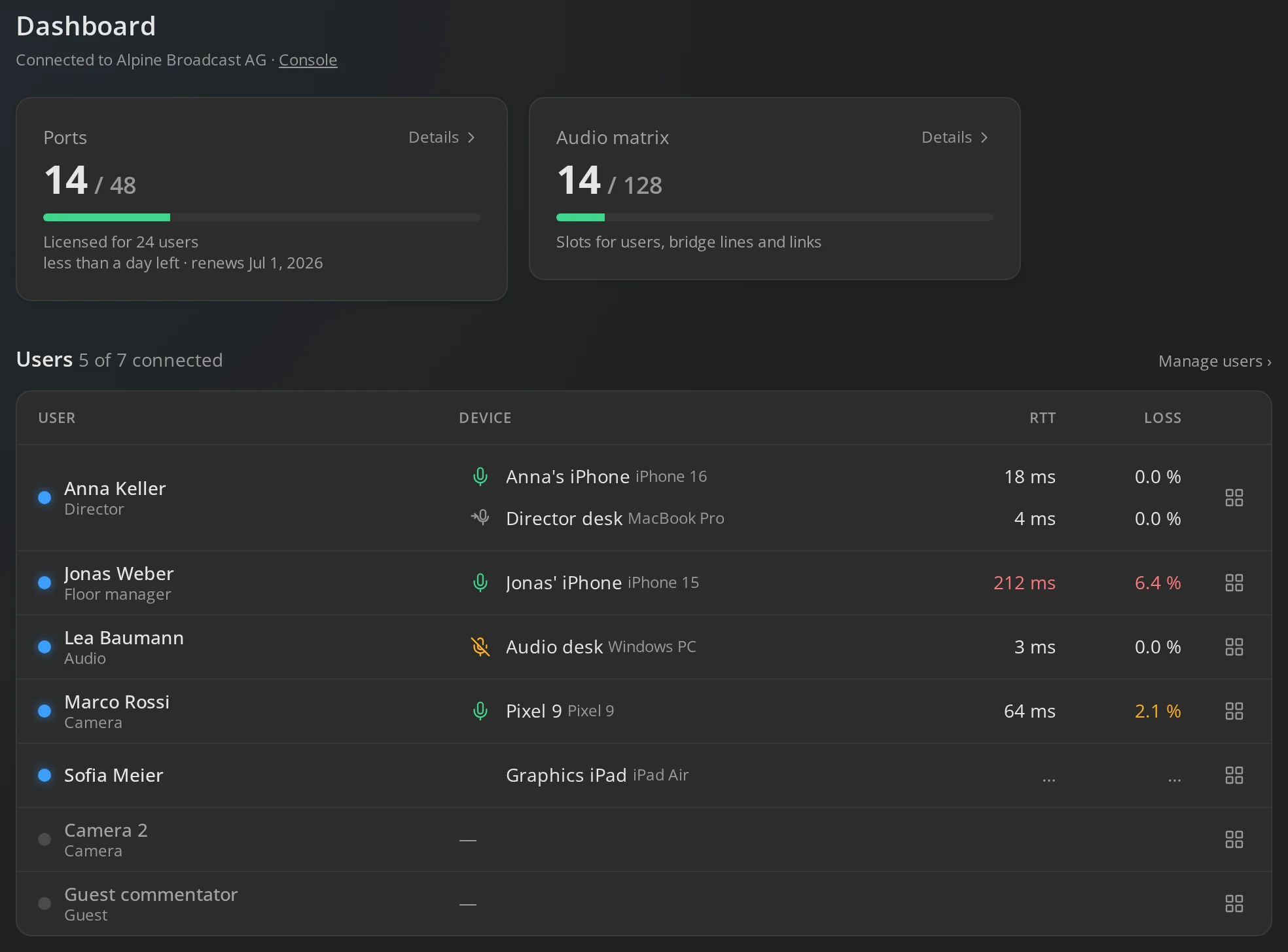
The line under the heading says whether the server is connected to the livematrix console, for example Connected to Alpine Broadcast AG. Console leads to the Console page. A server that is not connected works the same; only the line says so.
The Ports tile shows how many licence ports are in use, out of how many the licence allows. Every user who talks and listens takes two ports, however many devices they use. A bridge takes one for each channel it carries in or out. The line below says how many users the licence covers and when it ends or renews.
The bar turns amber at 90% and red when the server is full. Details opens the Ports page, which lists every user and bridge line that holds ports. A device that dropped without signing out keeps its ports for a few minutes, so it can reconnect; it is marked held.
See Console and licence for how ports are counted and what happens when the server is full.
Audio matrix
Section titled “Audio matrix”The Audio matrix tile shows how many of the server’s audio slots are in use. Every connected user, bridge line and server link takes one. The size is fixed while the server runs.
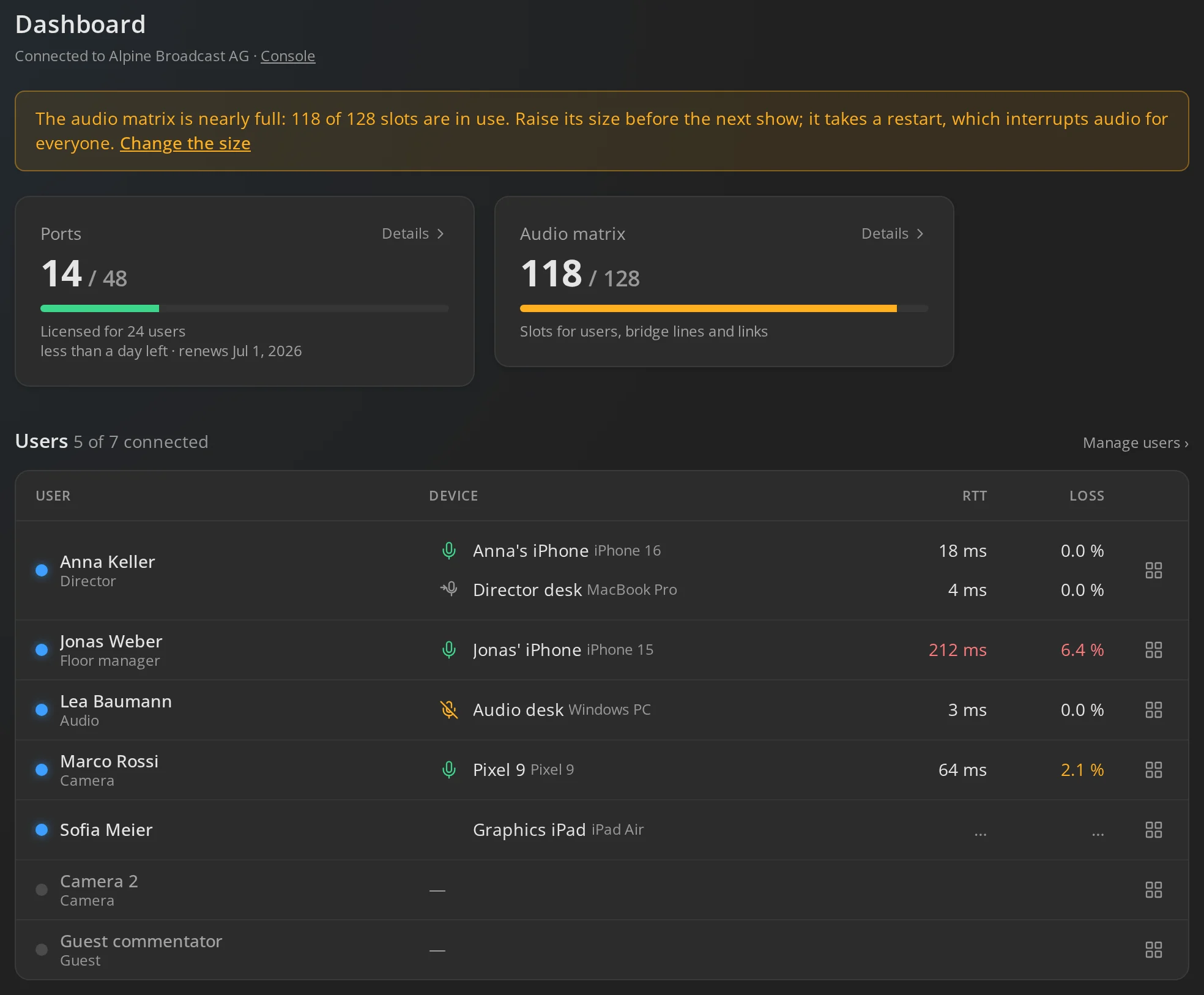
When the matrix is nearly full, a notice above the tiles says so. When it is full, the next user or bridge line to join has no audio until a slot frees up. Raise the size under Settings before the next show. The new size takes effect when the server restarts, which interrupts audio for everyone.
Users and their devices
Section titled “Users and their devices”The list shows every user, connected users first, with their profile and each device they are connected on. Manage users opens the Users page.
| Column | What it shows |
|---|---|
| User | A blue dot when the user is connected, then the name and profile. |
| Device | The name and model of each connected device. |
| RTT | The round trip time to the device. Amber from 100 ms, red from 200 ms. |
| Loss | Lost audio packets. Amber from 1%, red from 5%. |
A device whose values are still being measured shows ….
Mute or move a user’s microphone
Section titled “Mute or move a user’s microphone”The microphone icon before a device shows which of the user’s devices holds their microphone:
- A green microphone: the user is live. Click it to mute them.
- A crossed-out amber microphone: the user is muted. Click it to unmute them.
- Move mic here on another device moves the microphone to that device, unmuted.
The user sees the change at once on every device. See Multiple devices for how it looks to them.
See and change a user’s keys
Section titled “See and change a user’s keys”The keys icon at the end of a row opens the user’s keys, what they have on and what they hear. See Users → See what a user hears.