

Settings
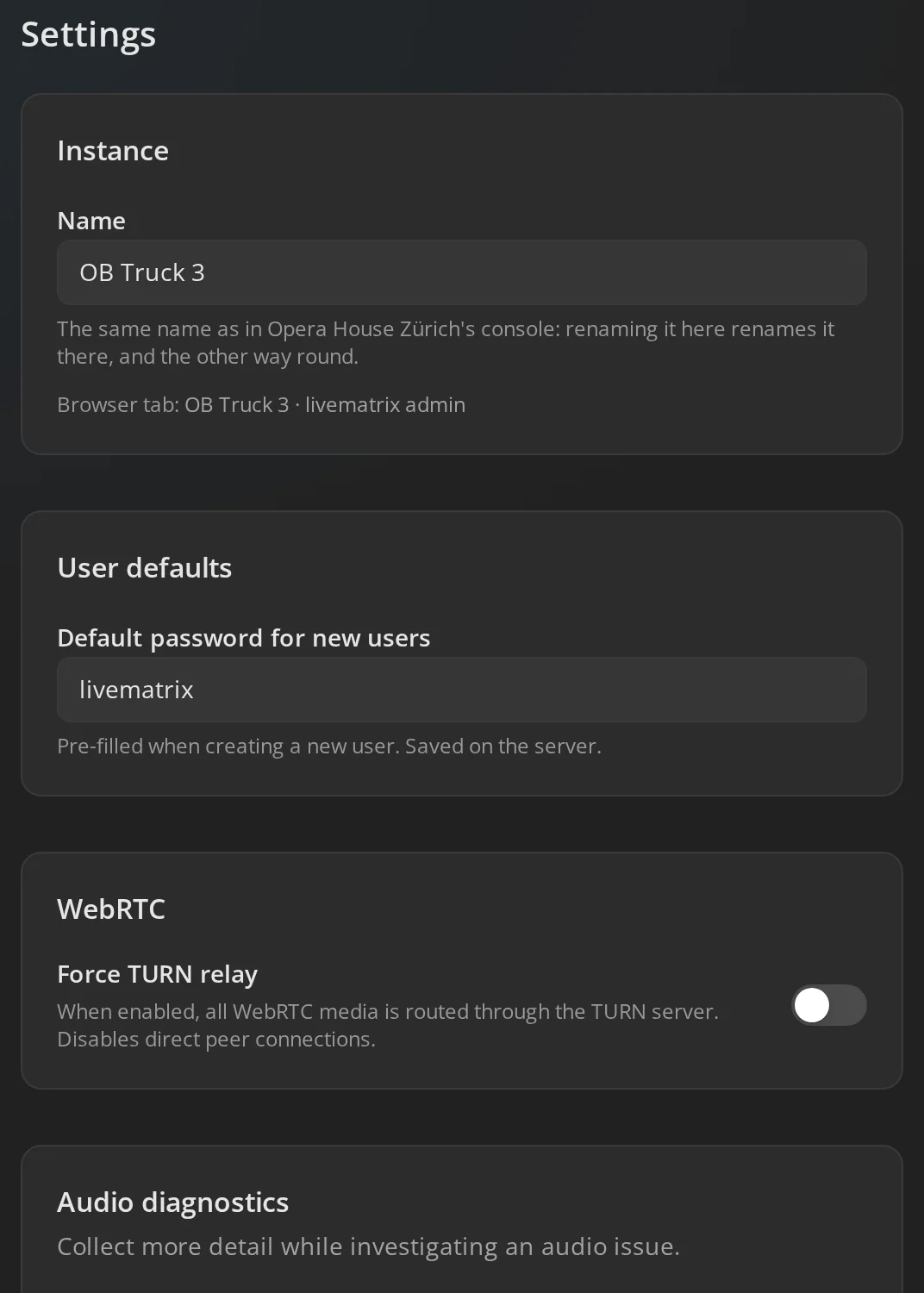
Setup → Settings holds the settings for the whole server, one card each. Network ports and certificates are under Network access, DNS and SSL; backups have their own page, below.
Instance
Section titled “Instance”Name is the server’s name, shown in the admin’s sidebar, the browser tab, the app and the console, such as OB Truck 3. It saves when you press Enter or leave the field. On a server connected to the console, renaming it here renames it in the console too, and the other way round.
User defaults
Section titled “User defaults”Default password for new users fills in the password when you add a user with a username. Leave it empty for no default.
Audio diagnostics
Section titled “Audio diagnostics”Extended audio logs writes a summary of each connection every 5 seconds instead of 30, while you investigate an audio problem. It applies at once, without interrupting audio, and stays on after a restart. No audio is recorded, and the log history is limited to 32 MiB.
Audio matrix
Section titled “Audio matrix”Slots is how many users and bridge lines the server mixes together, from 1 to 1024; 128 by default. Every connected user, bridge line and server link takes one. A free slot costs almost nothing, so leave room to grow.
The size is fixed while the server runs. Save for the next restart keeps
the new size; it takes effect when the server restarts, which interrupts audio
for everyone. Press Restart server beside the saved size to restart it now,
between shows. The Dashboard warns
when the matrix is nearly full. When LIVEMATRIX_MATRIX_SLOTS sets the size,
change it there.
Ducking
Section titled “Ducking”While a source of a higher key priority is live, every lower-priority source in the same mix is lowered. This applies to every user’s mix.
| Setting | Default | Range | What it does |
|---|---|---|---|
| Duck lower priorities | on | Off lowers nothing; priorities and users’ choices are kept. | |
| Depth | −12 dB | −60 to 0 dB | How far a ducked source drops. |
| Threshold | −45 dBFS | −96 to 0 dBFS | How loud a source has to be to count as live. |
| Hold | 750 ms | 0 to 10000 ms | How long a source stays live after it goes quiet. |
| Attack | 20 ms | 0 to 5000 ms | How fast a source is lowered. |
| Release | 400 ms | 0 to 5000 ms | How fast it comes back up. |
Save applies the values to every mix at once; Fill in defaults puts the defaults back in the fields. Tune the threshold, hold and release with real speech. Too short a hold makes the background pump between words. The Mix Inspector shows what is ducked for one user.
Audio processing
Section titled “Audio processing”Filters and a compressor work on every user’s and bridge line’s audio, and a limiter on every mix. A switch takes effect as you flip it; changed values take effect when you press Save.
| Setting | Default | What it does |
|---|---|---|
| High-pass filter | on, 80 Hz | Removes rumble, handling noise and hum below the cutoff (20 to 500 Hz). |
| Low-pass filter | off, 12000 Hz | Removes hiss and interference above the cutoff (1000 to 20000 Hz). |
| Compressor | on, −12 dBFS, 4:1 | Turns loud speakers down so they sit closer to quiet ones. Above the threshold (−60 to 0 dBFS), every ratio dB louder comes out 1 dB louder (1 to 20). |
| Limiter | on, −1 dBFS | Keeps every mix below the ceiling (−20 to 0 dBFS), so several loud sources together never clip. |
Bridge lines carrying music or programme audio go through the same filters and compressor. Keep the low-pass filter off, or its cutoff high, if that matters.
Updates
Section titled “Updates”The server looks for a newer version on its channel, downloads it in the background, and asks before it installs it. It checks a minute after it starts, then every six hours; Check now checks right away.
Channel:
- Stable: releases. The default.
- Nightly: the latest development build, for testing.
- Off: never looks.
When an update is downloaded, a banner on every admin page offers to install
it. Installing restarts the server, which disconnects everyone for a few
seconds. On Linux, the banner links to the new package; install it with
sudo apt-get install. The server keeps a backup of its database from before
every update. When LIVEMATRIX_UPDATE_CHANNEL sets the channel, change it
there. In a container, the image tag sets it; see
Run in Docker.
Change administrator password
Section titled “Change administrator password”Enter your Current password, the New password twice, and press Change password. To set a password for another administrator, see Admin users.
Backups
Section titled “Backups”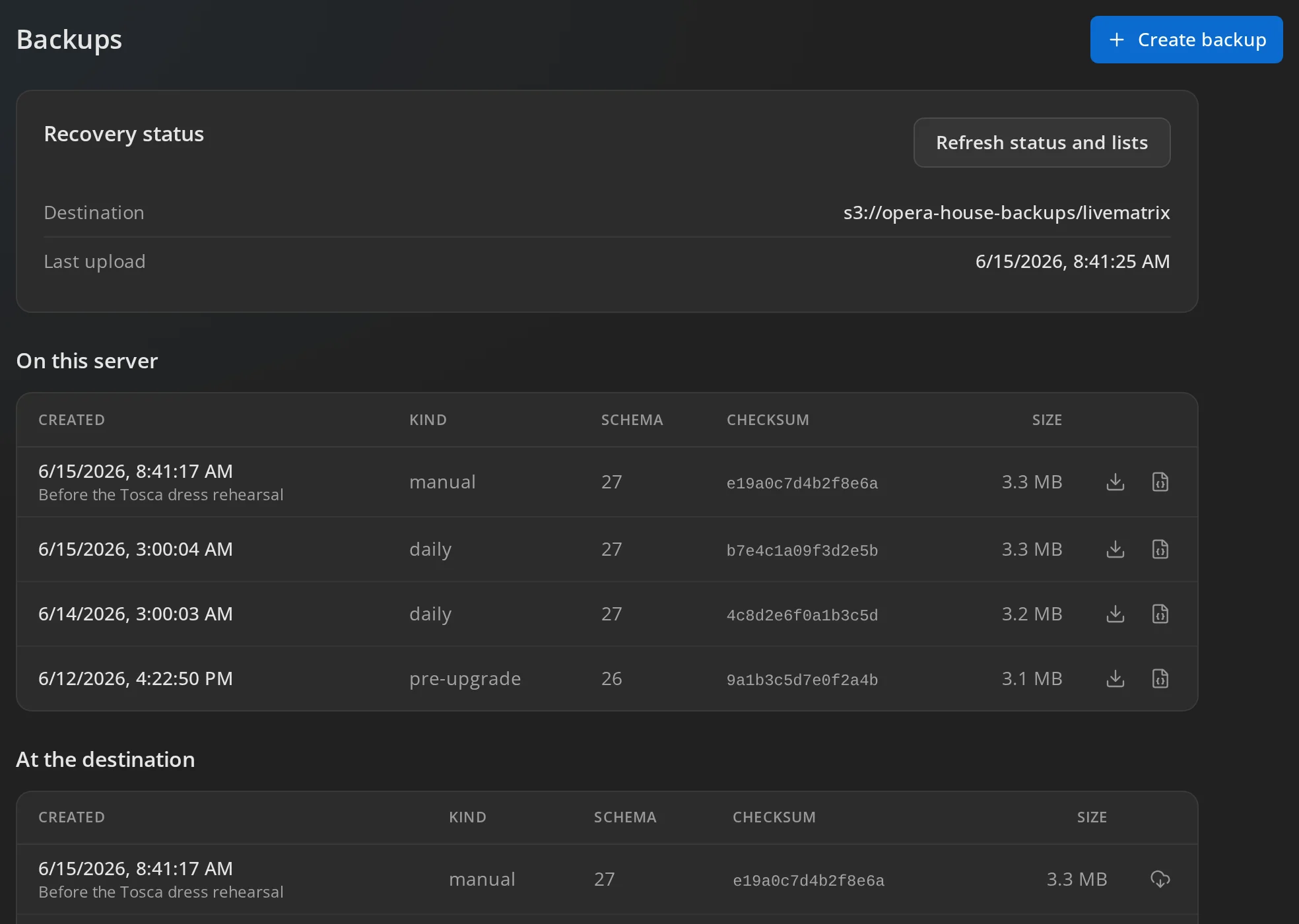
Setup → Backups keeps copies of the server’s database: users, profiles, keys, lines, bridges and settings. The server takes them by itself, every hour and every day, before every update and before every import. Each one is checked after it is written.
- Create backup takes one now, for example Before the rehearsal.
- Download database and Download manifest save a backup to your computer. Keep the two files together.
- Destination copies every backup to a second place: a Server directory on mounted storage, or S3-compatible storage. The directory must exist, be writable by the server and be outside its data directory.
- Download full backup takes one now and saves it to your computer as
one
.sqlitefile. - Import a file with a
.sqlitebackup checks it and stages it. The page then shows the command that restores it, which runs while the server is stopped.
Copy the setup to another server
Section titled “Copy the setup to another server”Configuration export and import saves profiles, lines, groups, users, bridge lines and settings as one JSON file, and loads it into another server. Before an import, the page lists what will be added, changed and removed.
Include passwords and bridge keys puts password hashes and bridge keys in the file; store and send it like a backup. Without them, the file is safe to share or keep in git, and imported users need a password and each bridge a new key.