

Keys
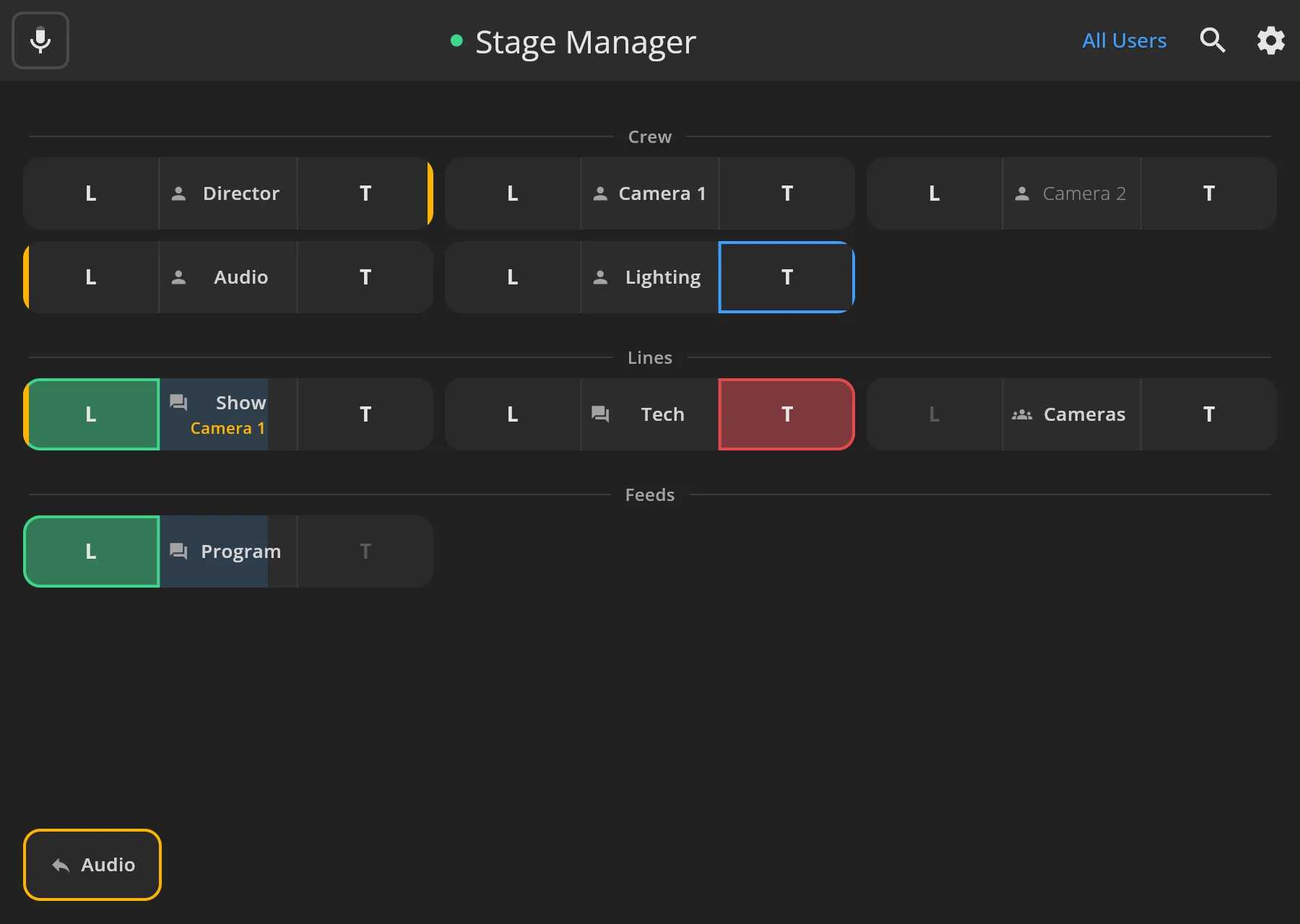
Your keys fill the main screen. Your administrator chooses them in your profile, and they are the same on every device you sign in on. Section headings group them; keys without a section are under Others.
What a key is
Section titled “What a key is”Every key has L on the left to listen, T on the right to talk, and the name in the middle. A small icon before the name shows what kind of key it is.
A grey L or T does nothing. Either the kind of key can’t do it, or your administrator turned it off for this key.
Kinds of keys
Section titled “Kinds of keys”Your administrator decides which keys you get. There are four kinds.
| Key | Icon | Talk (T) | Listen (L) |
|---|---|---|---|
| User | A person | Talk to that person. | Hear that person. |
| Party line | Speech bubbles | Talk to everyone on the line. | Hear everyone talking on the line. |
| Feed | Speech bubbles, grey T | A feed only listens. | Hear the feed. |
| Group | Several people, grey L | Talk to every member at once. | A group only talks. |
User keys
Section titled “User keys”
A user key is one person. T talks to them directly. Only they hear you, at the level they set for you. L lets you hear them whenever their microphone is live, whoever they are talking to, for example to keep an ear on the director.
You don’t need L to hear someone who talks to you. When they talk to you directly, through a group or with Talk All, you hear them anyway, and the amber edge on L shows it.
A user key can also be a piece of hardware that your administrator connected, such as a radio, a desk or another intercom. It works like a person.
Party line keys
Section titled “Party line keys”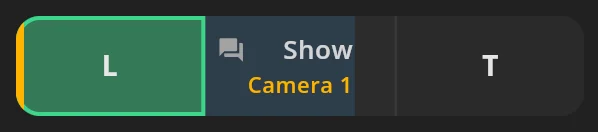
A party line is a shared channel, for example for everyone on the production or for the technical crew. Everyone talking on the line is heard by everyone listening to it.
T talks into the line. L lets you hear it. To take part in a conversation, turn on both. Talking alone does not let you hear the answers. The names under the line are the people who spoke on it in the last five minutes. Listening now in the key’s settings shows who else listens.
Feed keys
Section titled “Feed keys”
A feed is audio to listen to, such as the programme sound, a reference mix or an audio source your administrator connected. L lets you hear it. You can’t talk into a feed, so its T is grey.
Group keys
Section titled “Group keys”
A group is a set of people, for example all camera operators. T talks to every member at once, as if you talked to each of them directly. You can’t listen to a group, so its L is grey. To hear the members answer, they talk back to you, or you listen to them on their own keys.
The amber edge on T shows that at least one member is listening to you. Members in the key’s settings lists who the group reaches.
Keys you get without your administrator
Section titled “Keys you get without your administrator”Two kinds of keys appear by themselves:
- Reply keys for people who just talked to you.
- Talk All keys for every user, if your profile allows it.
Talk and listen
Section titled “Talk and listen”A key is on while you hold it, or until you turn it off if you latch it.
| Touch | Mouse | Keyboard | |
|---|---|---|---|
| Talk or listen while holding | Hold T or L, let go to stop. | Hold the button down, let go to stop. | Focus the button, hold Space or Enter. |
| Latch it on | Hold, slide inward towards the name, and let go. On L, a tap also latches. | Click it. | Press Space or Enter briefly. |
| Turn a latched key off | Tap it, or slide again. | Click it again. | Press Space or Enter again. |
- A click shorter than about a third of a second latches. Hold the mouse button down longer and the key is on only while you hold it.
- On a touch screen, sliding back before you let go cancels the latch. Moving your finger up or down scrolls the screen and ends the press.
- Your administrator can turn latching off for a key. Then it is on only while you hold it. A key that was already latched still turns off.
Try it on this practice key. It talks to nobody.
Try it: hold T, then let go.
Each key works on its own, so you can hold or latch several at once. Letting go of one does not turn off another.
A key you hold on another device, a Bluetooth button or Companion shows as on here too.
Read a key
Section titled “Read a key”| Key | What you see |
|---|---|
 |
Green L. You are listening. |
 |
Red T. You are talking. |
 |
A ring around L or T. It is latched and stays on. |
 |
An amber edge on L. Audio is coming in on this key now. After it stops, the edge fades over a minute, so you can see who spoke last. |
 |
An amber edge on T. That person, or a member of the group, is listening to you. |
|
Amber names under a party line. Who spoke on the line in the last five minutes, newest first. |
 |
A faint name on a user key. That person is offline. |
|
A blue bar behind the name. The listen level, while you listen. |
Set the listen level
Section titled “Set the listen level”
Drag the name sideways. The level shows in dB while you drag, from −30 dB to +10 dB. Every key starts at 0 dB. To silence a key, turn listen off.
Change a key’s settings
Section titled “Change a key’s settings”Long press the name, or right-click it with a mouse, to open the key’s settings:
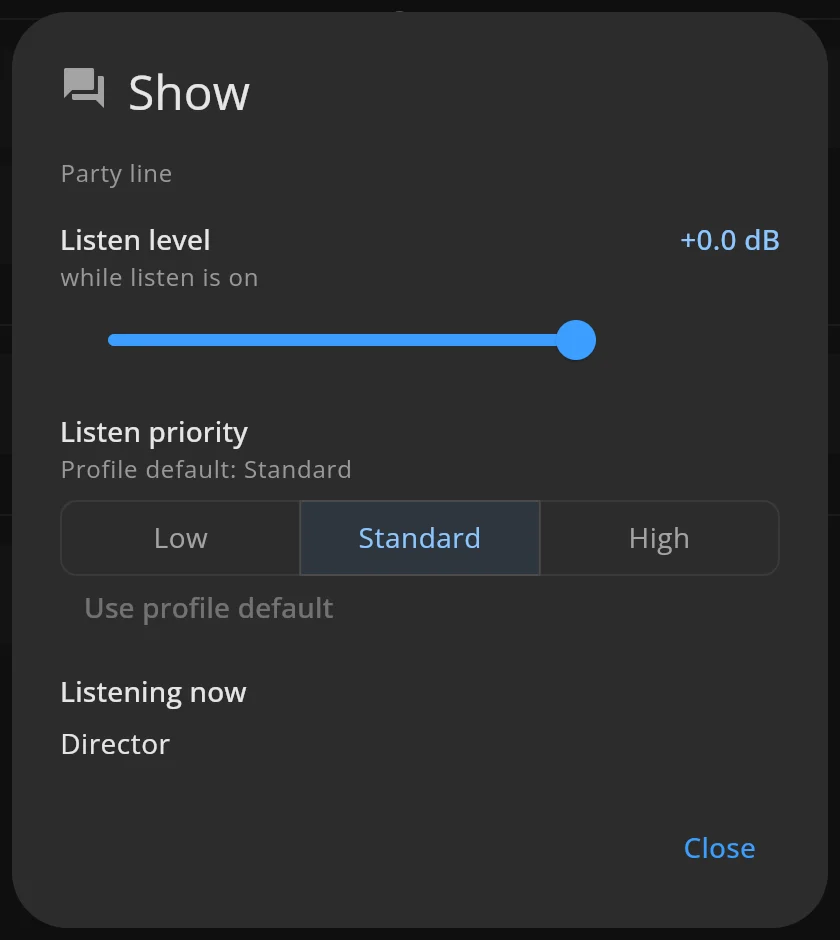
- Listen level, used while L is on. The same level you drag on the key.
- Direct-talk level, on user keys: how loud that person is when they talk to you.
- Listen priority and Incoming direct-talk priority. See Priority and ducking.
- Members, on group keys: who the group reaches.
- Listening now, on party line keys: who else listens to the line right now, or “Nobody else”.
Your levels and priorities follow you to every device you sign in on.
Reply to Someone
Section titled “Reply to Someone”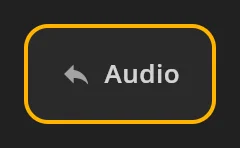
When someone talks to you, a reply key for them appears in a row under your keys, newest on the left. Hold it to answer. It has an amber edge while they talk to you and disappears ten minutes after they stopped.
Reply keys only talk and never latch. They appear only for people you have a user key for.
Talk to Anyone
Section titled “Talk to Anyone”If your profile allows Talk All, the top bar has an All Users button, and a search also finds users you have no key for. Their keys only talk: hold T to talk to that person, let go to stop. They don’t latch and don’t listen. My Keys brings your own keys back.
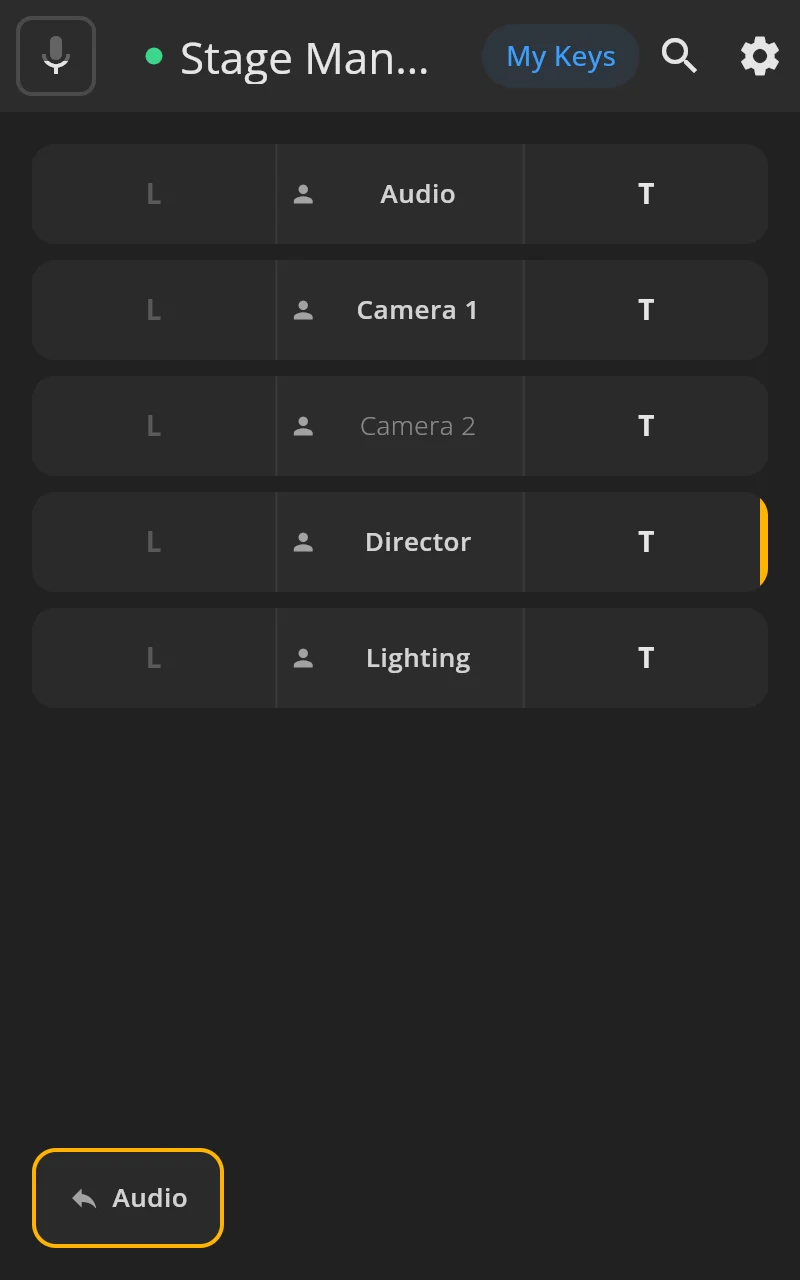
Which users appear depends on your profile. Ask your administrator if the button is missing.
Search your keys
Section titled “Search your keys”The search icon in the top bar filters your keys by name. Close search shows them all again.
Mute your microphone
Section titled “Mute your microphone”The mic button at the top left shows your microphone. Tap it to mute or unmute.
| The button | It means | A tap |
|---|---|---|
 |
You can be heard. The microphone moves with your voice. | Mutes. |
 |
You are muted. | Unmutes. |
 |
You are muted, but you hold a talk key, so the people on that key hear you. | Unmutes. |
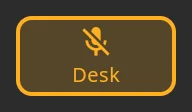 |
Your microphone is on another of your devices, here Desk. | Takes the microphone on this device, unmuted. |
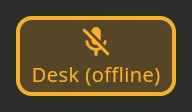 |
The device with your microphone lost its connection. | Takes the microphone on this device, unmuted. |
| Crossed out, with no device | None of your devices has the microphone. | Unmutes on the device that had it last. |
Muting silences you on latched talk keys, party lines and for anyone who listens to you. Holding a talk key still talks through the mute, so you can answer without unmuting. Your keys stay as they are. When you unmute, you are heard wherever you were talking.
You have one microphone state for all your devices. Mute on your phone, and your computer shows muted too. A Bluetooth button, Companion and your administrator mute and unmute the same microphone.
If you press a talk key on a device that doesn’t have the microphone, the mic button flashes. Tap it to take the microphone.
While you’re connected, the microphone stays open even when muted, so your system may show that it is in use. A muted device sends no audio.