

Profiles and keys
A profile is a set of keys for a role, such as Director, Camera or Guest. Every user has one profile, and many users can share it. Change a profile, and every user on it gets the new keys at once, on every device.
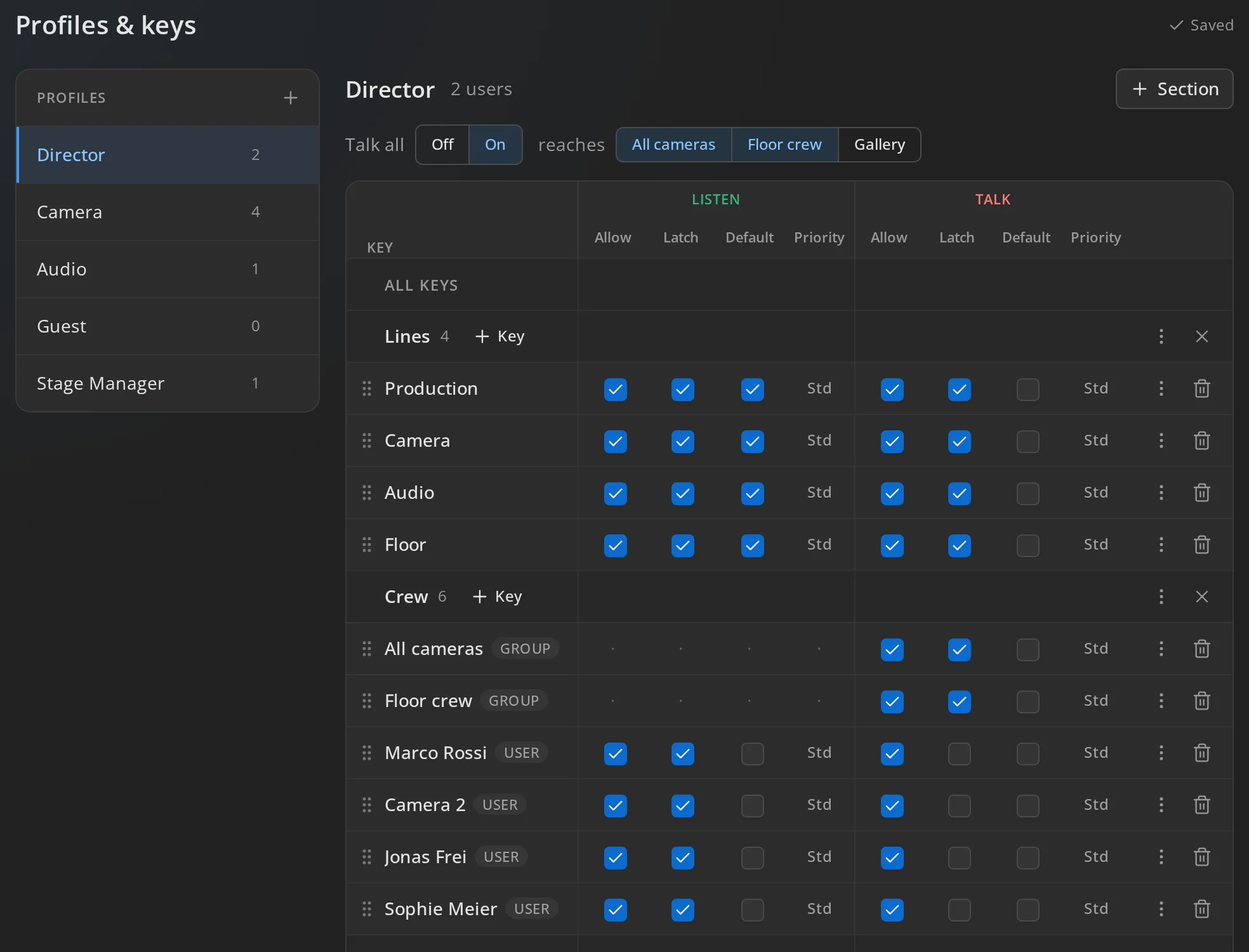
Open Profiles & keys. The profiles are listed on the left, or in a Pick a profile list on a narrow screen. There is no Save button. Every change saves itself, and the top right says Saving…, Saved or Not saved with Retry.
Create, rename and delete a profile
Section titled “Create, rename and delete a profile”- Press + next to Profiles, type a name and press Enter.
- Double-click a profile’s name to rename it.
- The trash icon next to a profile deletes it, after you confirm. Users on it are left without a profile and see no keys.
The number of users next to the title, such as 4 users, leads to the Users page. You give users a profile there, in the Profile column.
Add keys
Section titled “Add keys”Press Add key under the keys, or + Key on a section to add straight to it. Search for party lines, feeds, groups and users, tick one or more, and press Add key (or Add 3 keys). Only targets without a key in this profile are listed.
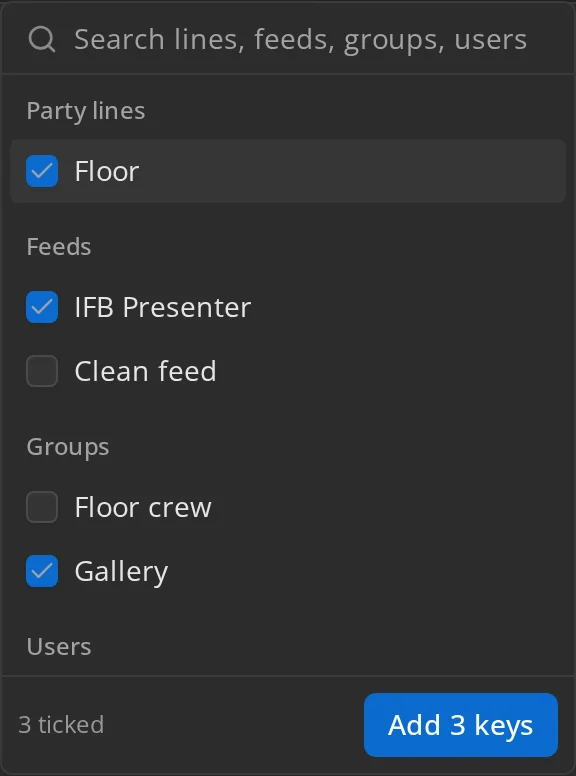
What each kind of key does is explained for users under Kinds of keys:
- A user key talks to and listens to one person.
- A party line key talks into and listens to a shared channel.
- A feed key only listens.
- A group key only talks, to every member at once.
New keys start with the settings in the New keys start as row at the top. Change that row to set what this profile’s next keys get.
Set what a key allows
Section titled “Set what a key allows”Each key has the same four settings for Listen and for Talk:
| Setting | What it does |
|---|---|
| Allow | The user may listen or talk on this key. When it is off, that half of the key is grey in the app, and the other settings are locked. |
| Latch | The user may latch it on. When it is off, the key is on only while the user holds it. |
| Default | The key starts on when the user signs in or the profile is reset. |
| Priority | Low, Std or High. Decides who ducks whom; see below. |
A feed has no talk half and a group no listen half; their cells show ·.
To change a setting for many keys at once, point at the All keys row, or at a section’s header, and use the controls that appear there. A dash means the keys disagree. The admin asks before it changes them.
Set a key’s priority
Section titled “Set a key’s priority”The Priority under Talk is the priority of the user’s voice when they talk through the key. The one under Listen is how much weight the user gives what they hear through it.
When a higher-priority source is speaking into someone’s mix, every lower-priority source in that mix ducks. A key that is on but silent ducks nothing. Priorities only decide ducking; they never change a level. See Priority and ducking for how users see it, and Settings for how far and how fast sources duck.
Users can change the listen priority of their keys and the priority of people talking to them, in their own mix only. Their talk priority stays as the profile says.
Arrange keys in sections
Section titled “Arrange keys in sections”Sections become headings in the app, such as Crew, Party lines or Feeds. Keys without a section are under Others, always last.
- Section (+) adds a section named New section. Double-click its name to rename it. Renaming it to the name of another section merges the two.
- Drag a key by its handle to move it, also into another section. Without a mouse, use the key’s ⋮ menu: Move up, Move down, Move to section or New section.
- A section’s ⋮ menu moves it up or down.
- × on a section removes the section and keeps its keys.
The app shows the keys in the same order.
Remove a key
Section titled “Remove a key”The trash icon at the end of a key’s row removes it, without asking. It disappears from the users’ apps at once.
Let users talk to everyone
Section titled “Let users talk to everyone”Talk all lets users on this profile talk to any user, also to users they have no key for. In the app they get an All Users button with a talk key for every user; see Talk to anyone.
- Off: users only have their keys.
- On: users reach everyone. Tick groups next to reaches to limit it to the members of those groups.
Users get the change the next time they sign in.
Change a user’s keys right now
Section titled “Change a user’s keys right now”To turn a key on or off for one user, for example to put someone on a party line during a show, open their keys from the Users page or the Dashboard. That changes the user’s state, not the profile.