

Get started
This page takes you from installing livematrix to your first call. Choose your device in the tabs. livematrix remembers the choice on every page.
Install the app
Section titled “Install the app”Download the installer (.msi) and open it. livematrix updates itself from then on.
Download the disk image (.dmg), open it and drag livematrix to Applications.
Download the package (.deb) and install it with apt:
sudo apt-get install ./livematrix-client_amd64.debThe client needs Ubuntu 24.04, Debian 13 or newer.
Install livematrix from the App Store.
Install livematrix from Google Play. For a phone without Google Play, download the APK and open it on the phone.
There is nothing to install. Open your server’s address in Chrome, Edge, Firefox or Safari. Your administrator gives you the address.
Other downloads are on the Download page.
Sign in
Section titled “Sign in”Your administrator gives you three things: the server’s address, a username and a password.
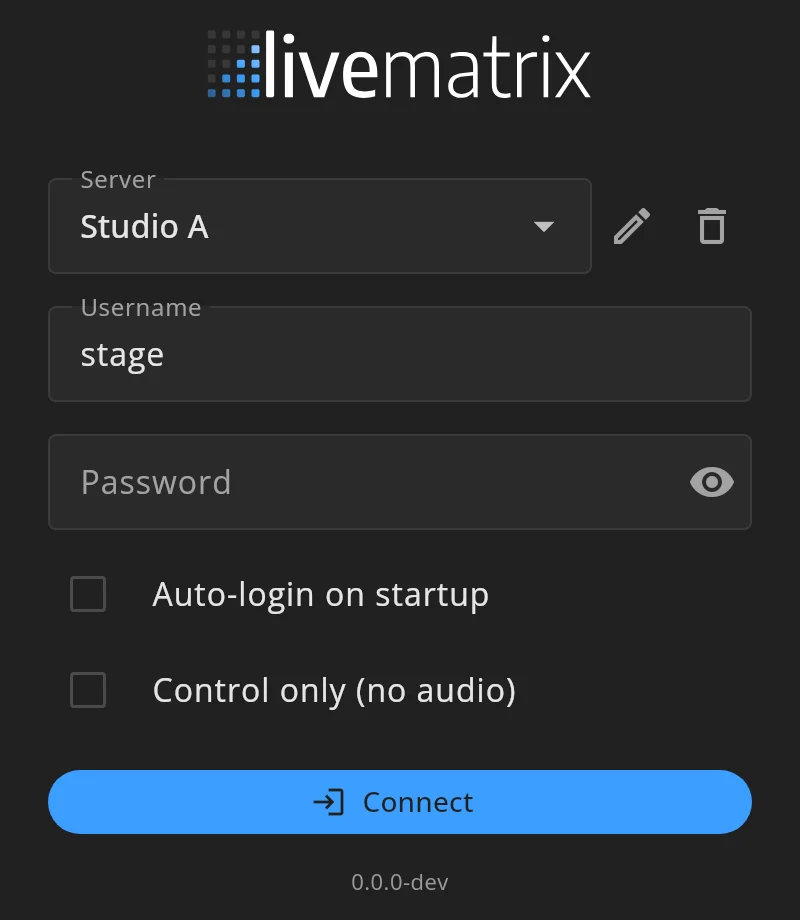
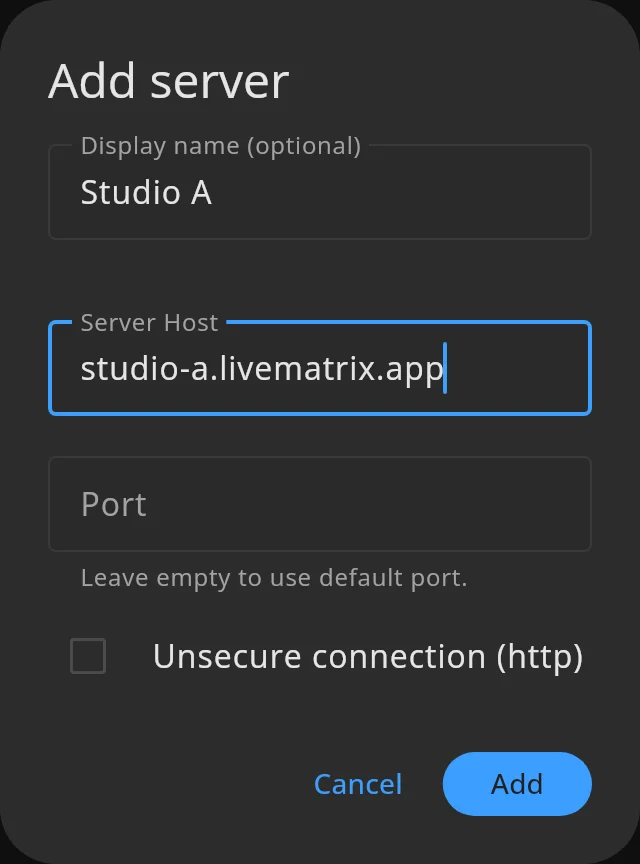
- Under Server, choose Add server….
- Enter the address under Server Host, only the name, without
https://. Leave Port empty unless your administrator gives you one. - Tick Unsecure connection (http) only if your administrator tells you to.
- Press Add.
- Enter your Username and Password and press Connect.
In a browser, skip the server. The page already belongs to your server.
Auto-login on startup signs you in by itself the next time you open the app.
Control only (no audio) signs you in without microphone or speaker. Your keys work, so another device of yours can talk while this one is a control panel. See Multiple devices.
If signing in fails
Section titled “If signing in fails”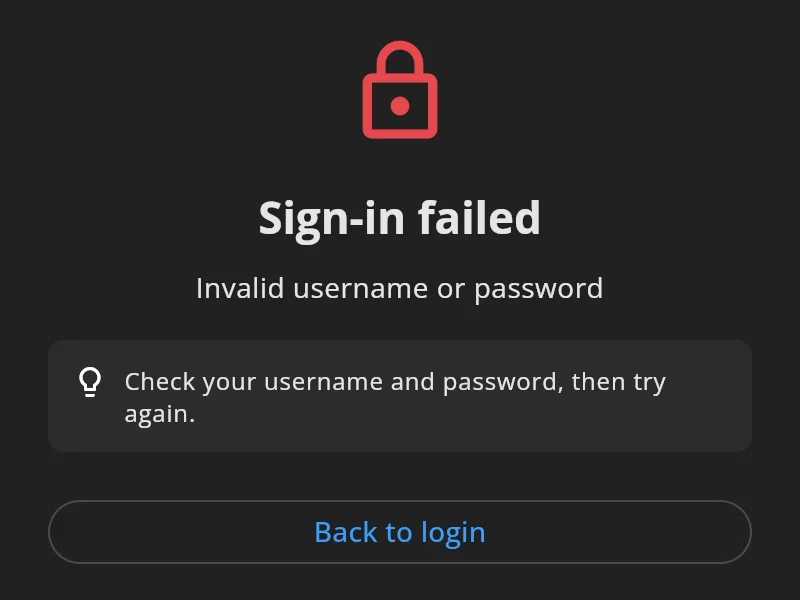
| The app shows | What to do |
|---|---|
| Sign-in failed | Check your username and password. |
| Cannot reach the server | Check the server address and your network. A firewall may block livematrix. |
| Cannot reach the server on this network | The server is on a local network. Check that this device is on the same network, and that livematrix may use the local network (see Permissions). |
| Secure connection failed | The server’s certificate is not valid for this address. Check the address with your administrator. |
| Server not responding | Check the server address and your network, then press Try again. |
| “All … licensed ports on this server are in use” | Every licence is in use. livematrix connects you by itself as soon as one is free. |
Permissions
Section titled “Permissions”livematrix asks for what it needs the first time it needs it. The microphone matters most. Without it, nobody hears you. If you don’t want to give it, sign in with Control only (no audio).
Windows does not ask.
- Microphone. If nobody hears you, open Settings → Privacy & security → Microphone and turn on Microphone access and Let desktop apps access your microphone. Open system settings on the livematrix error screen opens that page.
- Firewall. If Cannot reach the server says the system blocked the connection, allow livematrix in Windows Firewall or your security software.
- Microphone. macOS asks the first time livematrix starts audio. Choose Allow. If you chose not to, open System Settings → Privacy & Security → Microphone and turn on livematrix. Open system settings on the livematrix error screen opens that page.
- Local Network. For a server on your local network, macOS asks whether livematrix may find devices on the local network. Allow it, or turn it on later under System Settings → Privacy & Security → Local Network.
Linux does not ask. If nobody hears you, check that your microphone is not muted in your desktop’s sound settings, and choose it in livematrix under Settings → Devices.
On Wayland, your desktop asks you to confirm each keyboard key you set up as a button.
Before iOS asks, livematrix explains why. Tap Continue, then Allow.
- Microphone, so others can hear you.
- Local Network, only for a server on your local network. livematrix uses it only to reach your server. A livematrix cloud address needs no local network access.
- Bluetooth, only when you add a Bluetooth push-to-talk button.
If you said no, open Settings → livematrix and turn on Microphone, Local Network or Bluetooth.
Before Android asks, livematrix shows one page for each permission. Tap Continue, then Allow:
- Microphone, so others can hear you.
- Bluetooth headsets, to use a Bluetooth headset or push-to-talk button. Android calls this “nearby devices”. livematrix does not use your location.
- Notifications, to show the connection status while livematrix runs in the background.
- Run in the background, so Android does not close livematrix when the screen is off.
Every page except the microphone has Not now. If you said no, open Settings → Apps → livematrix → Permissions. Open system settings on the livematrix error screen opens that page.
After you sign in, the main screen says “Android may close livematrix when it is not on screen”. Tap Keep running and allow it, so livematrix stays connected with the screen off.
Samsung, Xiaomi, Huawei and other brands. Some brands close apps in the background even after you allowed it. On these phones livematrix asks you to also allow it in the phone’s battery and auto-start settings. Tap Done when you have. The names vary with the phone and its Android version:
| Phone | Where |
|---|---|
| Samsung | Settings → Apps → livematrix → Battery → Unrestricted. Also remove livematrix from Sleeping apps under Battery → Background usage limits. |
| Xiaomi, Redmi, POCO | Settings → Apps → livematrix: turn on Autostart, and set Battery saver to No restrictions. |
| Huawei, Honor | Settings → Battery → App launch: set livematrix to Manage manually and turn on all three switches. |
| OnePlus, OPPO, realme | Settings → Apps → livematrix → Battery: allow background activity, and turn on Auto launch if your phone has it. |
| vivo | Settings → Battery → Background power consumption management: allow livematrix. Turn on Autostart under Apps. |
dontkillmyapp.com has steps for every brand.
The browser asks for the microphone when you sign in. Choose Allow.
If you blocked it, click the padlock icon in the address bar, allow the microphone, and reload the page.
If the microphone is blocked while you’re signed in, the main screen says Microphone blocked, “Nobody can hear you”. Press Fix to see what to do.
Learn how a key works
Section titled “Learn how a key works”After your first sign-in on a device, livematrix explains a key in three short pages. Each page has a practice key, Director, that talks to nobody. Try it as you read. Skip intro closes the pages, and Settings → Help → How keys work opens them again.
The text follows how you use the app: touch on a phone or tablet, the mouse on a computer.
Try the same practice key here:
Try it: hold T, then let go.
This is a key
Section titled “This is a key”A key is a person, a party line, a feed or a group. L on the left listens, T on the right talks, and the name is in the middle.
- Green is listening.
- Red is talking.
- A ring means it stays on.
- An amber edge on L means audio is coming in on that key. On T it means that person is listening to you.
Hold to talk
Section titled “Hold to talk”| Touch | Mouse | |
|---|---|---|
| Talk | Hold T and speak, let go to stop. | Hold T and speak, let go to stop. |
| Keep it on | Slide inward, towards the name, and let go. | Click T. |
| Turn it off | Tap it. | Click it again. |
Listen works the same on L. On a touch screen, a tap also turns listen on.
How loud
Section titled “How loud”- Drag the name sideways for the listen level.
- Long press the name, or right-click it, for the key’s settings. They hold the listen level, used while L is on, and for a person the direct-talk level, how loud they are when they talk to you.
Keys explains everything a key does.
Choose your audio devices
Section titled “Choose your audio devices”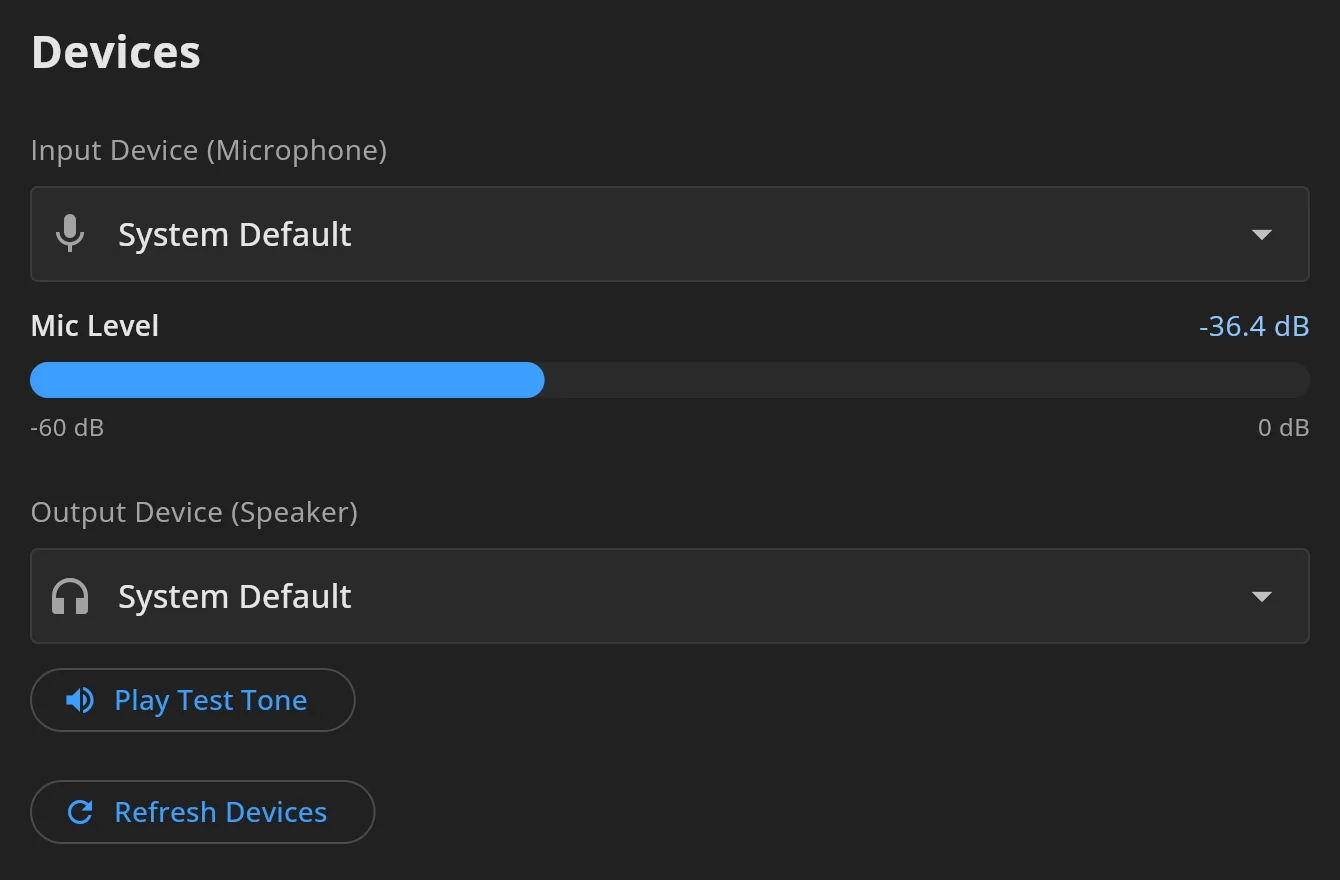
livematrix uses your system’s default microphone and speaker until you choose others. Use a headset. With speakers, your microphone picks up the people you hear.
- Open Settings with the gear at the top right of the main screen, or of the sign-in screen.
- Open Devices.
- Choose your microphone under Input Device (Microphone) and your headphones under Output Device (Speaker). On an iPhone or iPad, one list, Audio Device (Microphone and Speaker), chooses both.
- If a headset you just connected is missing, press Refresh Devices.
To check your microphone, open Settings → Audio. Mic Level moves while you speak. Settings explains gain, gate and the other microphone settings.
Make your first call
Section titled “Make your first call”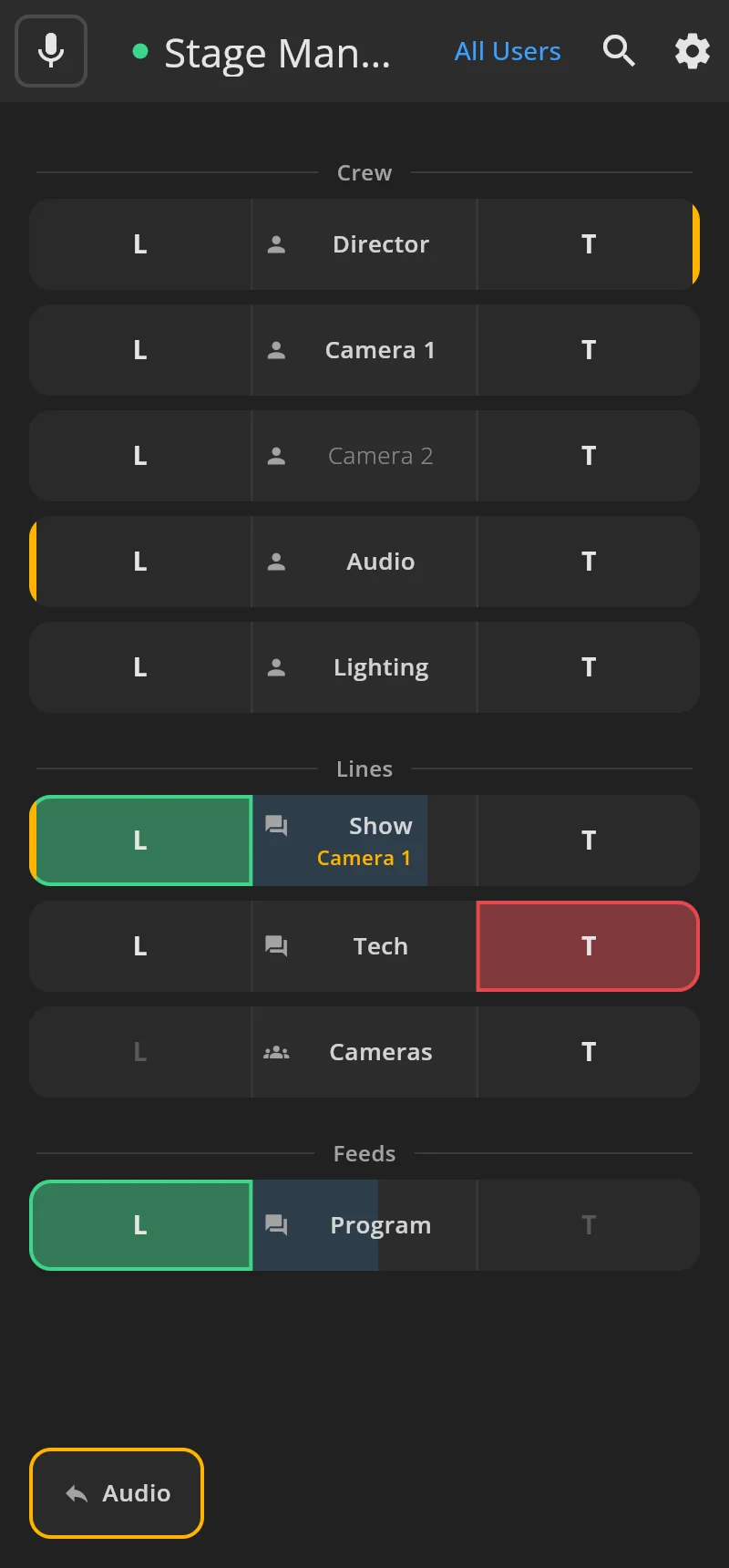
- Check the dot next to your name at the top of the main screen. Green means your audio is connected.
- Check the mic button at the top left. It shows a live microphone when you can be heard. If it is crossed out, tap it to unmute.
- Hold T on a colleague’s key and speak. Their key’s T turns red.
- Ask them to answer. The amber edge on your L shows that their audio comes in, and you hear them while L is on.