

Users
A user is a person or a position, such as Director or Camera 1, that signs in to the app. Each user gets one profile, which decides their keys. A user can sign in on several devices at once.
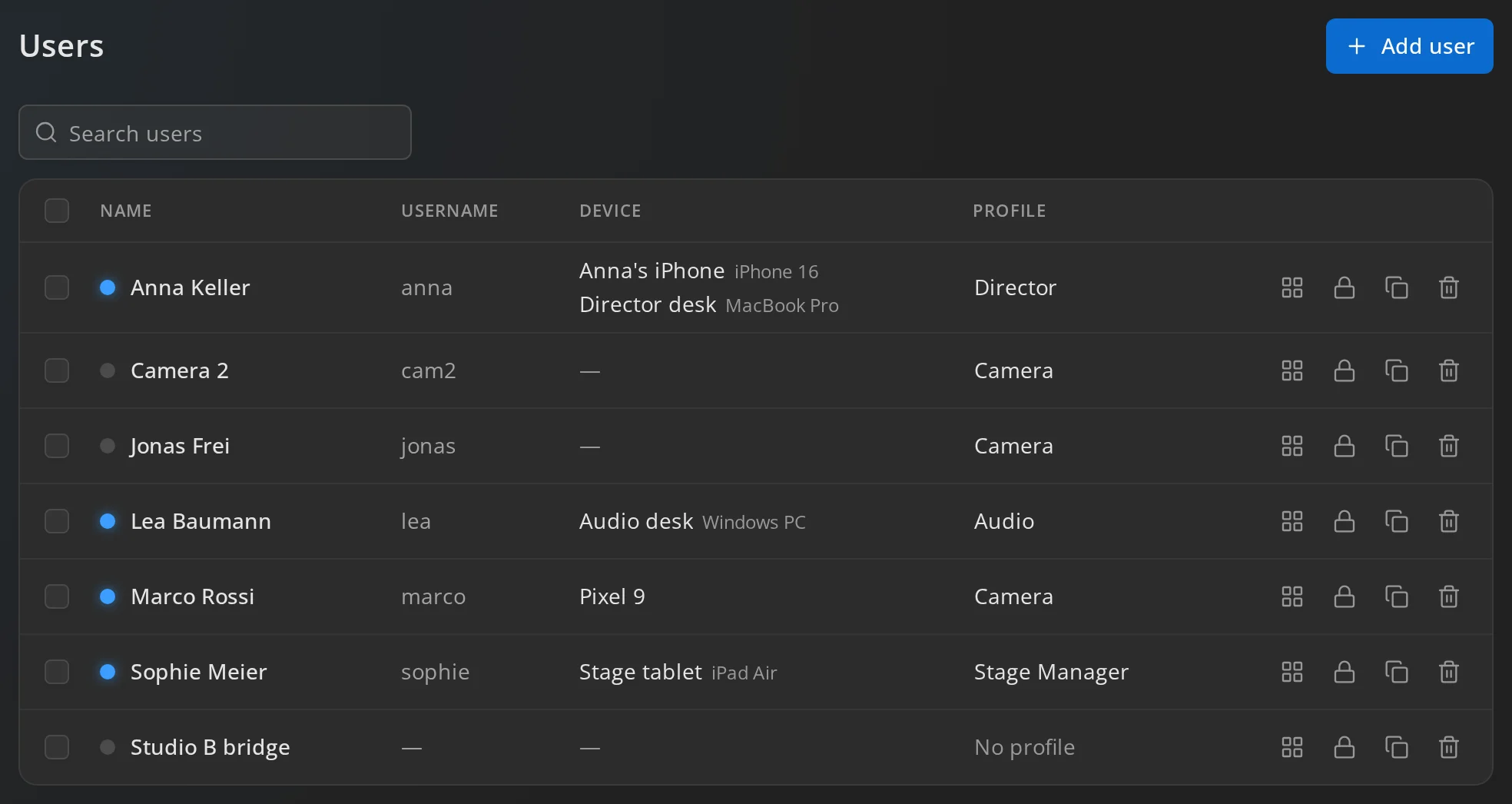
Users in the menu lists everyone, sorted by name. A blue dot before the name means the user is connected. Device shows the devices they are connected on. Search by name or username at the top.
Add a user
Section titled “Add a user”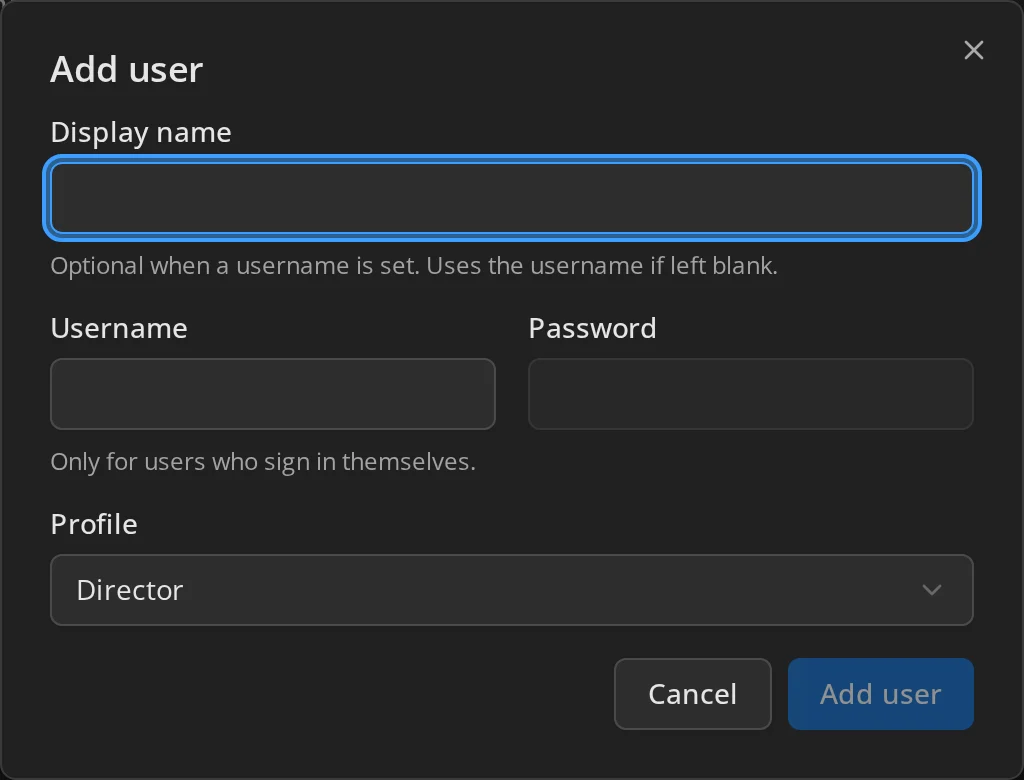
Press Add user and fill in:
- Display name, the name other users see on their keys. It can be left empty when there is a username; the username is used then.
- Username, what the user signs in with.
- Password. It is filled in with the default password once you type a username, if one is set under Settings.
- Profile. The dialog remembers the profile you chose last.
Then press Add user. Hand the username, the password and the server’s address to the person.
Users that don’t sign in
Section titled “Users that don’t sign in”A user without a username and password cannot sign in, and is otherwise a full user. Other users can have a key for them, and they can be in groups. Use one for a position that hardware fills, such as a desk or a commentary position connected through a bridge. Leave Username and Password empty when you add it.
Rename a user
Section titled “Rename a user”Double-click a name or username in the list, or tap it on a touch screen, and type the new one. Enter saves, Escape cancels. Emptying the name keeps the old one; emptying the username takes it away.
Change or remove a password
Section titled “Change or remove a password”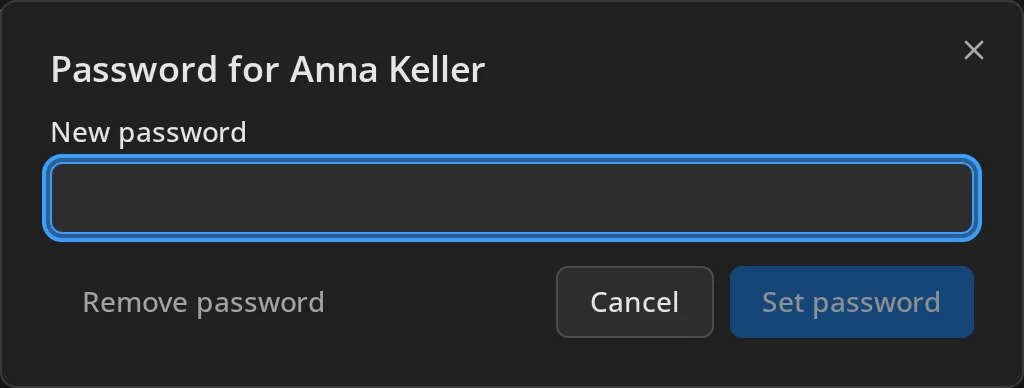
Press Change password in the user’s row, type the New password and press Set password. The field shows the password as you type it, so you can read it back to the person.
Remove password takes it away at once, without asking. It signs all of that user’s devices out, and they can’t sign in again until you set a new password. Bridges connected to the user keep running.
Change a user’s profile
Section titled “Change a user’s profile”Choose another profile in the user’s Profile column. The user’s keys change at once on every device they are connected on. No profile leaves them without keys.
Change several users at once
Section titled “Change several users at once”Tick the users in the first column. The bar above the list then offers:
- Set profile to give them all one profile, or No profile.
- Change password to give them all one password. Users without a username are left out.
- Delete.
A progress bar shows while the change runs. If some users fail, the page says which and why.
Duplicate a user
Section titled “Duplicate a user”Press Duplicate in the user’s row. The copy is called <name> (copy),
has the same profile and a username with the next number, for example cam2
from cam1. The password is not copied. Set one before the copy can sign in.
Delete a user
Section titled “Delete a user”Press Delete in the user’s row and confirm. The user’s keys and devices go with them, and every key that points at them disappears from other users’ panels.
See what a user hears
Section titled “See what a user hears”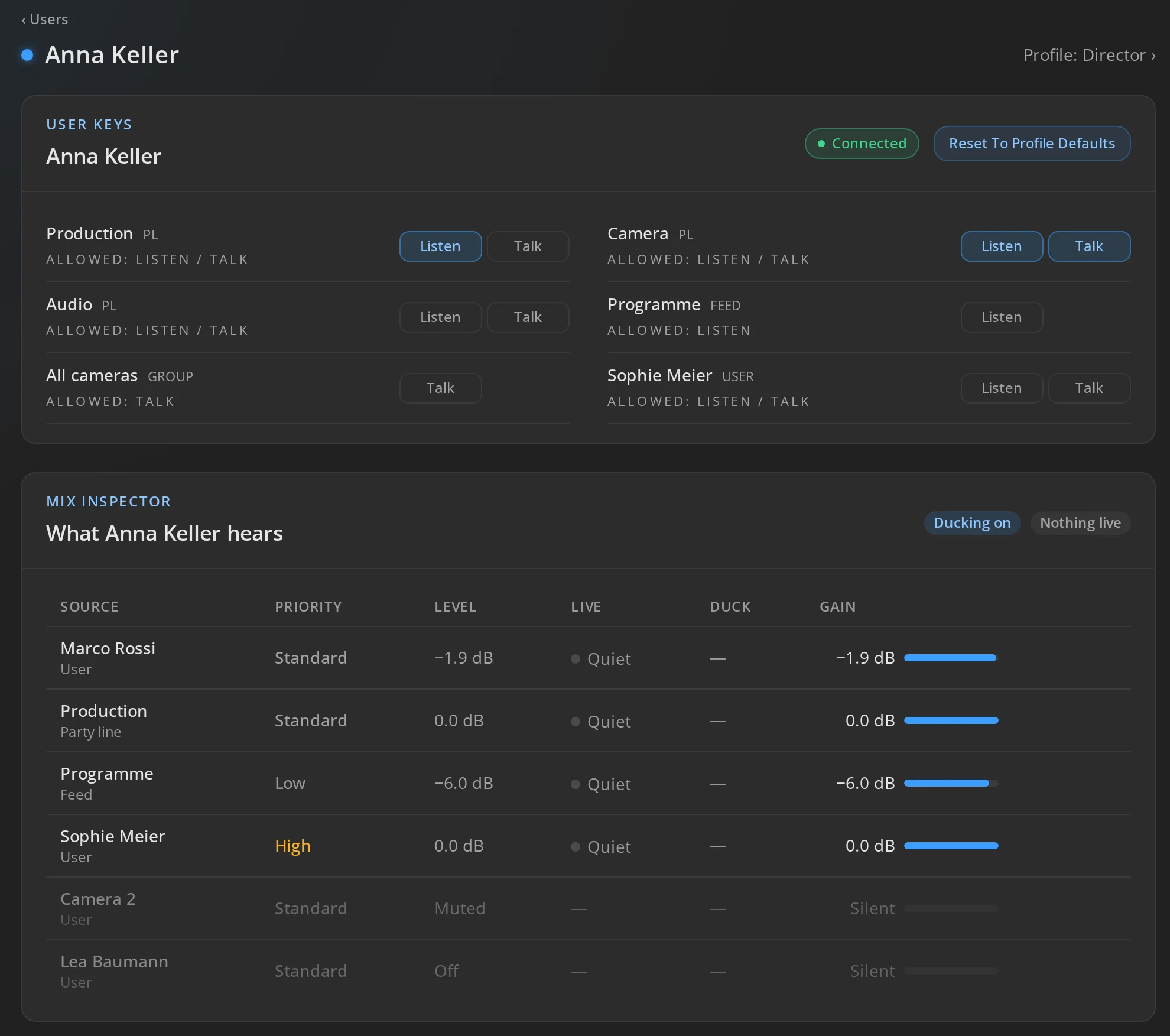
Keys in a user’s row, or on the Dashboard, opens the user’s keys.
User Keys lists every key of the user’s profile, with what is allowed and what is on. Click Listen or Talk to turn a key on or off for the user, as if they had latched it. Changes for a user who is offline apply when they connect. Reset To Profile Defaults turns every key back to what the profile starts with.
Mix Inspector shows What <name> hears while they are connected: every source in their mix with its Priority, Level, whether it is Live (speaking right now), how far it is ducked and the gain actually applied.
Use it when a user hears the wrong thing:
- A source that should duck others but never shows Live is too quiet for the ducking threshold, or its microphone is muted.
- A source that is live but ducks nothing has the same or a lower priority than what it should duck. Check both keys’ priorities, and the listener’s own choices.
- If ducking is off in Settings, the inspector says so.
Admin users
Section titled “Admin users”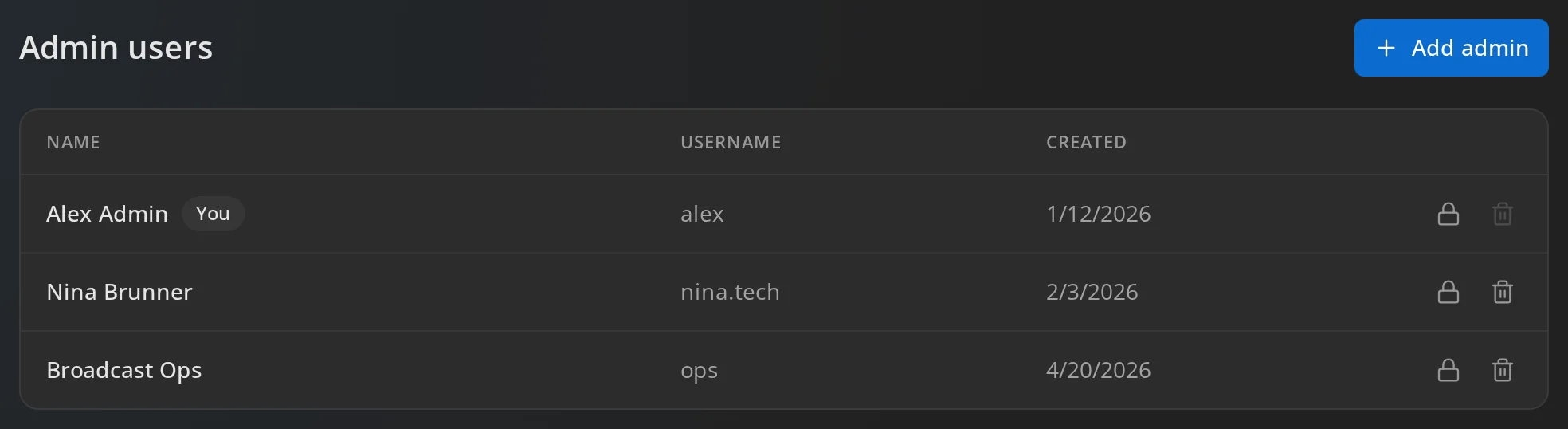
Administrators sign in to this admin. They are separate from users. An administrator cannot sign in to the app with their admin account, and every administrator can change everything.
Open Setup → Admin users:
- Add admin creates one with a display name, username and password.
- Double-click a name or username to change it.
- Change password sets a new password for another administrator.
- Delete removes one and signs them out of the admin. You can’t delete yourself, and the last administrator stays.
Change your own password under Settings → Change administrator password.
If nobody can sign in to the admin
Section titled “If nobody can sign in to the admin”livematrix has no password reset. If an administrator forgot their username, an administrator on the server machine can rename the first administrator account:
- On a Mac, use Reset Administrator Username… in the menu bar.
- On Linux, run
sudo livematrix-server-ctl --reset-administrator-username NEWNAME. - On Windows, open a command prompt as administrator and run
livematrix-server-tray.exe --reset-administrator-username NEWNAMEfrom thetrayfolder of the livematrix server installation.
The server takes a backup first and signs that administrator out. Any other administrator can then set a new password for them.